How to take a screen shot picture using a CATScript macro
After learning how to setup your macros you can begin to write useful code. One helpful code to create that is easy to make but looks impressive to others is to take a screen shot of whatever is shown on your CATIA window and export it to an image format using a CATScript macro. I’ll highlight each line of code and explain what it does, step-by-step.
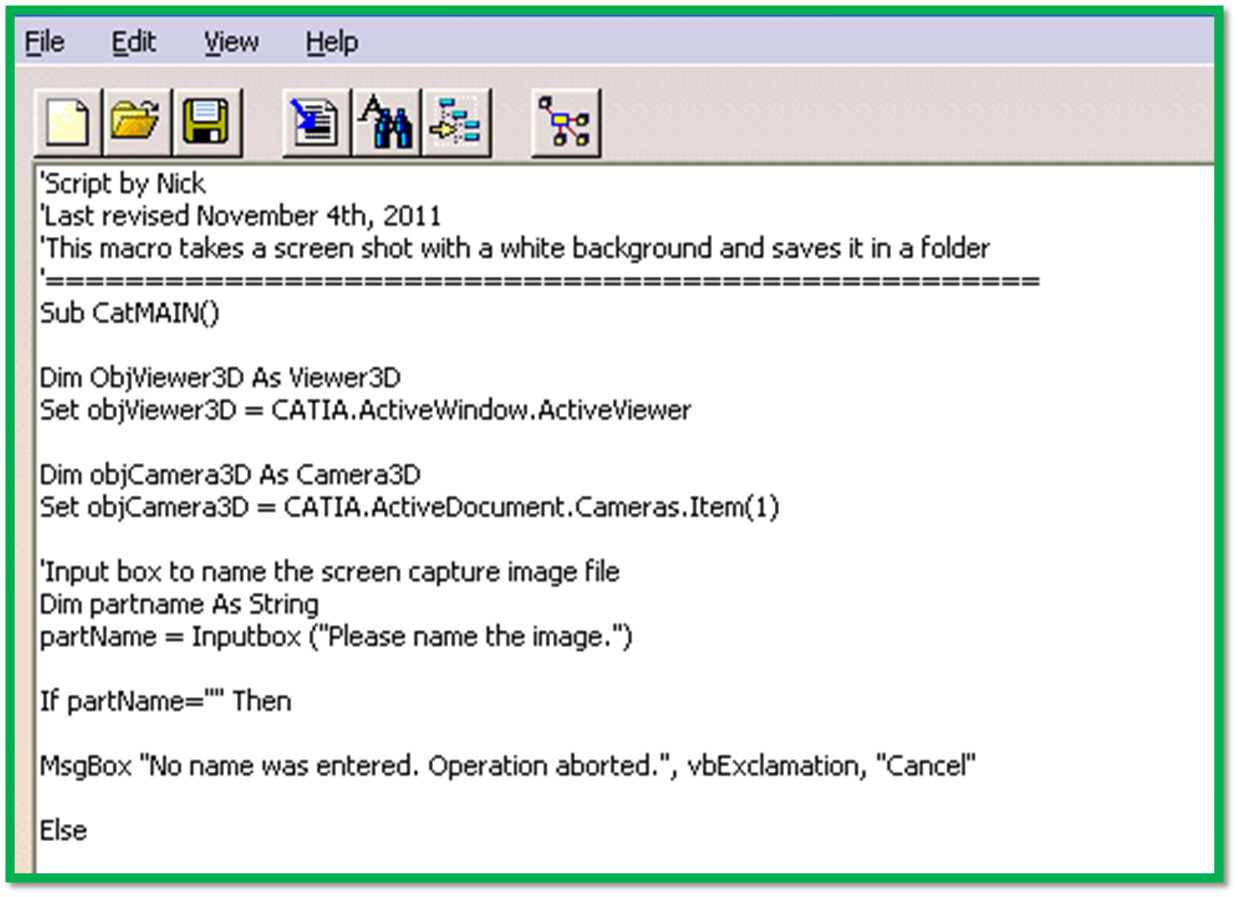
Our CATScript begins with:
Sub CatMAIN()
Next, we set the active window as the active viewer.
Dim ObjViewer3D As Viewer3D
Set objViewer3D = CATIA.ActiveWindow.ActiveViewer
Now we need to access one of the “Camera” objects from the current document. A camera object in CATIA is a static version of the window viewer object.
Dim objCamera3D As Camera3D
Set objCamera3D = CATIA.ActiveDocument.Cameras.Item(1)
Let’s create an Input box to name the screen capture image file. Then we’ll need and If Then statement to abort the operation if no name is entered.
Dim partname As String
partName = Inputbox (“Please name the image.”)
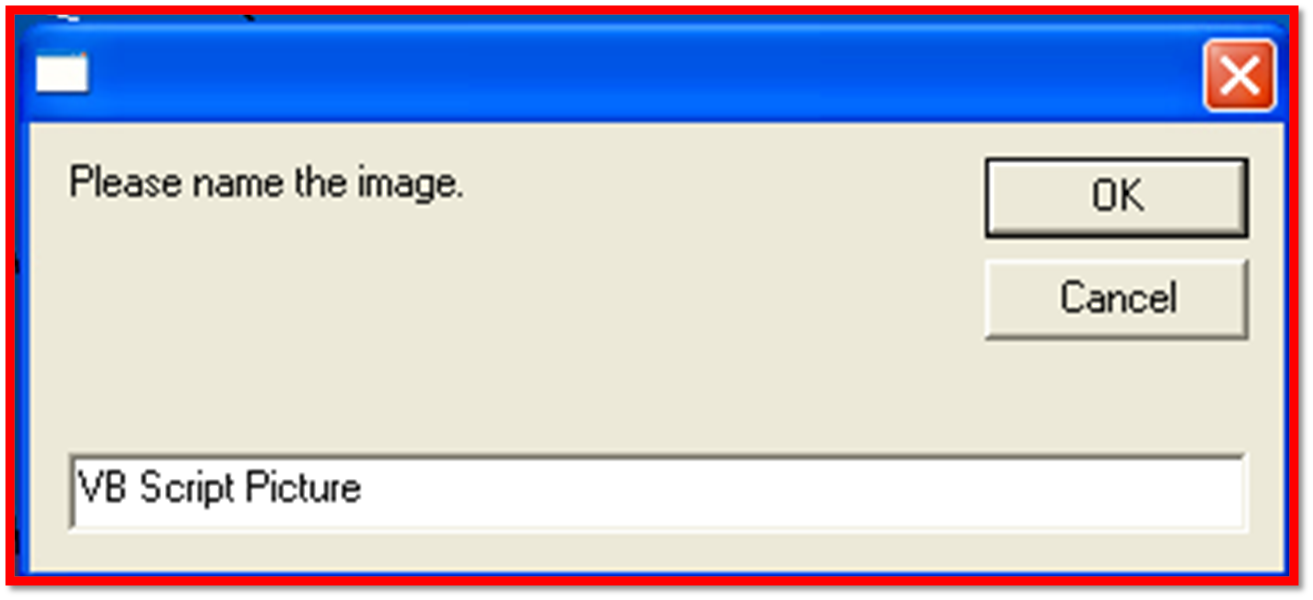
If partName=”” Then
MsgBox “No name entered”, vbExclamation, “Cancel Pressed”
Else
We need to specify a location to save the image file. Here I’ve chosen “C:\Macro Files\”
‘file location to save image
Dim fileloc As String
fileloc = “C:\Macro Files\”
I want my image to be exported as a .png file so I will create a variable specifying the extension name of the image.
Dim exten As String
exten = “.png”
My image file will be saved as the input box name plus the file extension and will be saved in the folder I specified earlier.
Dim strName as string
strname = fileloc & partName & exten
Set the 3Dviewer viewpoint to the camera viewpoint.
objViewer3D.Viewpoint3D = objCamera3D.Viewpoint3D
Clear the selection for picture.
CATIA.ActiveDocument.Selection.Clear()
I will also increase CATIA to full screen mode in order to obtain maximum resolution.
objViewer3D.FullScreen = True
Finally, using the viewer we can now export the 3D window into a picture format (BMP, TIFF, CGM, EMF, or TIFFGreyScale).
objviewer3D.Capturetofile 4,strname
We need to close our If Then statement from before and end the program as usual.
End If
End Sub
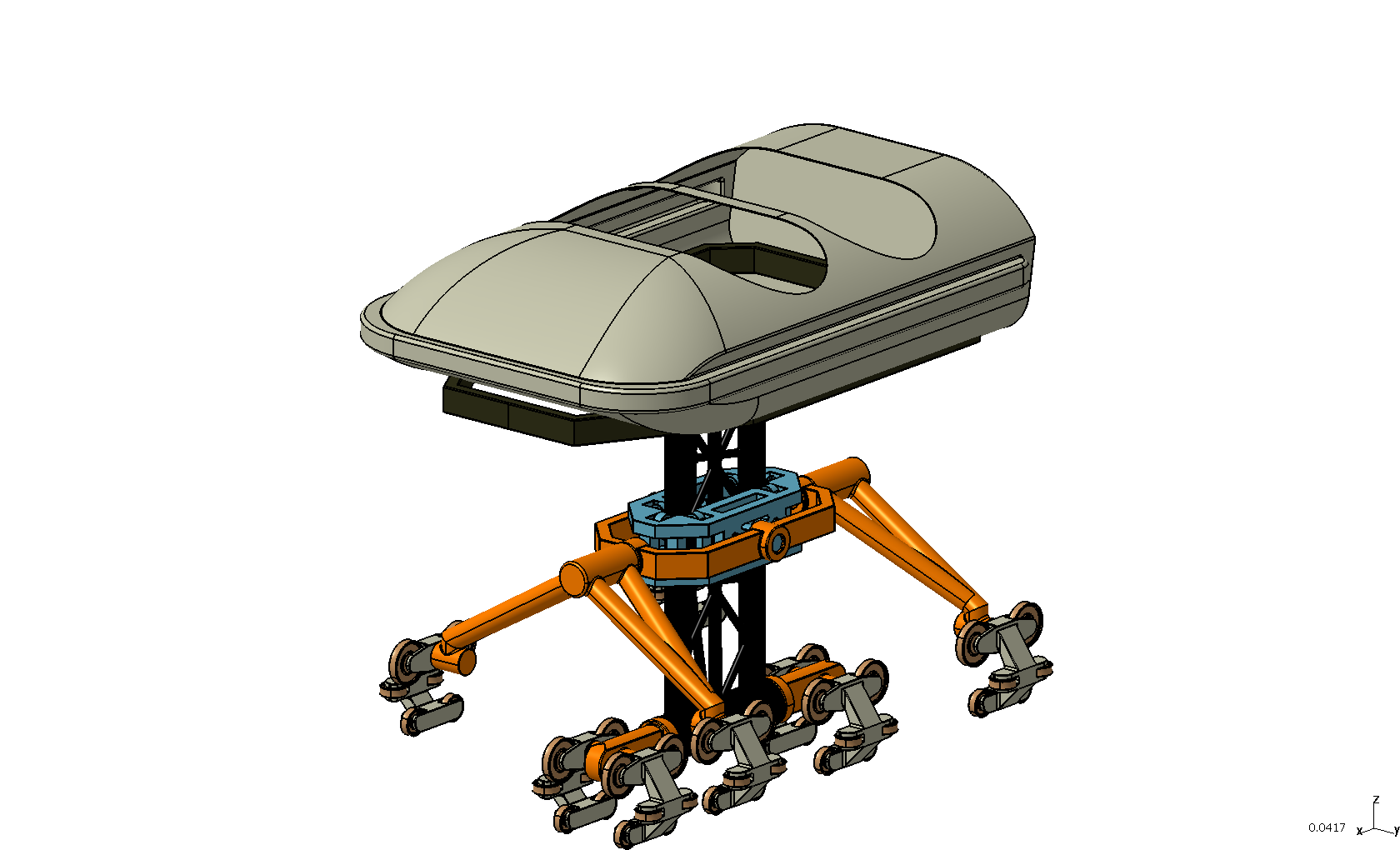
Embedded below is a Catia video tutorial of the end result. If you’re following along you should get the same result.
Now you know how to take a screen shot in CATIA using a CATScript macro. To make your picture even better you can automate other processes such as: turning the compass off, hiding the specification tree, turning the background to white, automatically reframe, zoom in or out, and more. You can even export your image capture directly to Power Point. This is helpful for car design in Catia. Purchase VB Scripting for CATIA V5 to get the complete example code and learn how to do all of these processes.
I would like to use the exact steps of this macro but with the export tool.
What i had in mind are the following:
-read the file name
-read the number of sheets (excluding detail sheet)
-“save as” each page with name_(number of page).jpg in a folder of my choosing
Any hints would be appreciated. Thanks.
Hi Mark. What do you mean by export tool and number of sheets? Like with a drawing file? Reading the file name and saving as are easy enough and there are examples of how to do that within this website.
-Emmett
I wasnt able to find the exact examples but this is what i meant:
– when you “Save as” in the Drafting module as a Jpg file it saves the current selected sheet as a picture.
– what i want to do is to find a macro that takes all the sheets from a drafting file and saves them with the same name and a certain identification _1 _2 _etc.
hello,
This CATScript macros works but it can make a screen shot only from one point of view and the background is not white. How can I set up the point of view or to make screen shots using the actual view?
Thank you
Hi Aleksandar,
The complete code for the screen capture macro is included in my book and macro pack download. To change the background to white:
Dim DBLBackArray(2)
objViewer3D.GetBackgroundColor(dblBackArray)
Dim dblWhiteArray(2)
dblWhiteArray(0)=1
dblWhiteArray(1)=1
dblWhiteArray(2)=1
objViewer3D.PutBackgroundColor(dblWhiteArray)
To reframe:
objViewer3D.Reframe()
Iso view:
objViewer3D.Viewpoint3D=objCamera3D.Viewpoint3D
good one really explained well… But i have doubt and i always struggle for this .. as an user i want ot take particular section of screen as image how can i modify above macro and i want to take it in drafting so viewpoint2D will be applicalbel but how can i input screen xy for both diagonal point of zoom window
Hi Emmett,
i copy&paste exactly the same code from your macro pack but couldn’t save the image file.
Is there a particular “save” code?
‘file location to save image
Dim fileloc As String
fileloc = “C:\Users\CH\Desktop”
Dim exten As String
exten = “.png”
Dim strName as string
strName = fileloc & partName & exten
Thanks
Hi CH, the “save” code where you tell it where and what type of file to save as is:
objViewer3D.CapturetoFile 4, strname
Let me know if that works for ya.
Emmett
Hi Emmett,
Thanks for the reply and advise.
The code seems like executed, but i couldn’t find the saved image in the specified folder or anything….
Am i missing anything?
Please advise. TQVM
Dear Emmett,
Please ignore my previous reply.
Its’ work after i add a “\” at the end of the file location.
C:\Users\CH\Desktop\
TQVM
Hi,
as a part of my work i need to save the drawing sheets as a tiff files. the name of the tiff file should be ZZZZZ_S0x (Z=part number & x= sheet numbers).
Some times i need to save 100 drawing sheets.
is there any macro in VBscrips to ful fill and make ease of my Work?
If anybody please help me.
Hi Emmet,
I wonder if you can help.
I like the image capture macro you use and have purchased your book via kindle (which i struggle to flick through as i have an android phone)
Could you please help. I am looking to modify your macro so it saves the image automatically when the macro is run as the part number i have entered in the parts properties of the model. Any pointers or could you send me to a page in your book that will help.
Many thanks
Gary
Hi Gary!
Thanks for purchasing my book, hope it has helped you. Saving the image as the part number or one of the properties should be easy.
Instead of this:
Dim strName as string
strname = fileloc & partName & exten
Replaced with something like:
Dim strName as string
strname = oPart.Name
There should be an example of how to get to some of the properties in the export to Excel example in the book. Let me know if you need any more help.
Hi I am new to writing macros and cant seen to get the above example to work can you please advise? Thanks
Hi
I’m trying to create a macro which loops through Product structure and take a picture of the component.
I have the bulk of the macro working
it loops through and takes a picture and saves it with the correct name of the component, but I’m having difficultly getting it to move to the part in question, so the picture is of that part and not the top active product
any help would be be very helpful.
Sub CATMain()
GetNextNode CATIA.ActiveDocument.Product
End Sub
Sub GetNextNode(oCurrentProduct As Product)
Dim oCurrentTreeNode As Product
Dim StrNomenclature, StrDesignation, StrWindows, PartNumber As String
Dim i As Integer
‘ Loop through every tree node for the current product
For i = 1 To oCurrentProduct.Products.Count
Set oCurrentTreeNode = oCurrentProduct.Products.Item(i)
‘ Determine if the current node is a part, product or component
If Right(StrWindows, 4) = “Part” Then
PictureGet oCurrentTreeNode.PartNumber
MsgBox oCurrentTreeNode.PartNumber & ” is a part”
ElseIf IsProduct(oCurrentTreeNode) = True Then
PictureGet oCurrentTreeNode.PartNumber
MsgBox oCurrentTreeNode.PartNumber & ” is a product”
Else
PictureGet oCurrentTreeNode.PartNumber
MsgBox oCurrentTreeNode.PartNumber & ” is a component”
End If
‘ if sub-nodes exist below the current tree node, call the sub recursively
If oCurrentTreeNode.Products.Count > 0 Then
GetNextNode oCurrentTreeNode
End If
Next
End Sub
Function IsProduct(objCurrentProduct As Product) As Boolean
Dim oTestProduct As ProductDocument
Set oTestProduct = Nothing
On Error Resume Next
Set oTestProduct = CATIA.Documents.Item(objCurrentProduct.PartNumber & “.CATProduct”)
‘Set oTestProduct = CATIA.Documents.Item(objCurrentProduct.ReferenceProduct.Parent.Name & “.CATProduct”)
If Not oTestProduct Is Nothing Then
IsProduct = True
Else
IsProduct = False
End If
End Function
Function PictureGet(PartName as string) as string
Dim ObjViewer3D As Viewer3D
Set objViewer3D = CATIA.ActiveWindow.ActiveViewer
Dim objCamera3D As Camera3D
Set objCamera3D = CATIA.ActiveDocument.Cameras.Item(1)
If PartName =”” Then
MsgBox “No name was entered. Operation aborted.”, vbExclamation, “Cancel”
Else
‘turn off the spec tree
Dim objSpecWindow As SpecsAndGeomWindow
Set objSpecWindow = CATIA.ActiveWindow
objSpecWindow.Layout = catWindowGeomOnly
‘Toggle Compass
CATIA.StartCommand(“Compass”)
‘change background color to white
Dim DBLBackArray(2)
objViewer3D.GetBackgroundColor(dblBackArray)
Dim dblWhiteArray(2)
dblWhiteArray(0) = 1
dblWhiteArray(1) = 1
dblWhiteArray(2) = 1
objViewer3D.PutBackgroundColor(dblWhiteArray)
‘file location to save image
Dim fileloc As String
fileloc = “C:\Temp\”
Dim exten As String
exten = “.jpg”
Dim strName as string
strname = fileloc & partName & exten
‘================================
‘zoom in
‘objViewer3D.ZoomIn()
‘clear selection for picture
CATIA.ActiveDocument.Selection.Clear()
‘increase to fullscreen to obtain maximum resolution
objViewer3D.FullScreen = True
‘take picture
objviewer3D.Capturetofile 4,strname
End If
‘*******************RESET**********************
objViewer3D.FullScreen = False
‘change background color back
objViewer3D.PutBackgroundColor(dblBackArray)
‘turn the spec tree back on
objSpecWindow.Layout = catWindowSpecsAndGeom
‘toggle compass
CATIA.StartCommand(“Compass”)
End Function
regards
Paul
Hi Paul. Have you tried reframing on each part before the capture is taken? Something like:
objViewer3D.Reframe()
Hello Emmett,
I want a macro for, assembly part to be export to excel sheet with separate part with its hole hole dimension values, is it possible.
Any one can give a suggestion.
Regards,
Deepankumar
Hello
I want to generate catia part using macros which takes input from matlab or excel. will you please help me to tackle this problem
Hi…
Just Want to Capture Front view In Drawing not Full Screen. How to Achieve.
Thanks In Advance
Hi Emmette,
Your macro works to take a picture on a part. What if we want to take picture of all the sketches contained inside the part?
Should we use 3D Viewer or 2D viewer?
Please explain.
Thank you for all your help!
Best wishes
Rhushik
Hi Emmette,
Thank you for this tutorial !
When I make screenshots manually, I go in tool->picture->capture. This allows me to set the definition of the image I want. Do you know how to set the quality of the image in the macro ?
Best wishes
Jean-Christophe
Same questiion goes for me?
Thank you for this tutorial.
However, using the command objviewer3D.Capturetofile 4,strname gives a poorer image quality than rendering would do. Is there any way to access the Photo Easy Tools of CATIA V5 with a macro?
Thanking you in advance for your help.
Replace 4 (.bmp) by 5 (jpg)
Hi I’m trying to capture a image at current view. So firstly I m looking a plane normal than I want to capture image from that perspective. But using this code the image coming from cameras.item(1), how can I change the camera angle ?
So if i want to capture other window’s on catia screen (ex:- draft analysis window in catia screen , etc ) how can i capture them. CaptureToFile didn’t work for me !!
I am new to Macro, So currently i need a macro to take a screenshot of all the parts which is available in the folder with white background
Hello everyone,
I am dealing with a 2D cmg file. I am new in writing macro. I need to write a macro to use capture mode and I am doing it by CATIA.StartCommand “Capture” and capture window opens. In capture windows there are options and capture buttons which I need to use. I could not find a way to use them by writing a macro. I need to use them because I need to set resolution and background color of the image.
Any help will be appreciated.
Hello,
we created a tool, to automatically do screenshots.
If i do a capture manually i can hide the axis with the option “Capture Only Geometry”.
Do you know, how i can set this option also in catvba?
I’ve resolve the problem by :
1- loop on all axis systems are show
2-Make a selection of them
3-hide the selection
4-Make the capture
I arrive to do one screen shot.
But how to do the same view with 2 different colors of the primary body
Catia v5 capture can take pictures match your requests :
– Support most CATIA 3D file .
– Define pictures follow direction of view .
– Customize back ground color with two color : white and default.
– Customize format picture : jpg, bmp, tif, emf.
– Customize size of picture with your input.
– Picture file name is same with 3D file name and subfix is view name .
Try it at https://www.scripting4design.com/products/catiav5capture
How can I set the size of screenshot taken?